Who changed that record? When was it edited? Which user deleted it?
If you've ever asked these questions inside Odoo, User Log is the answer.
User Log is an Odoo 17, 18 and 19 module that automatically tracks every user action across your system — creates, updates, reads, and deletes — with complete field-level detail.
What Does User Log Track?
User Log captures four types of operations:
- Create — when a user creates a new record
- Write — when a user edits a record (with old and new values per field)
- Read — when a user opens and views a record
- Delete — when a user permanently removes a record
You choose which models to monitor and which operations to track. Everything else is automatic.
Field-Level Change Detail
For Write operations, User Log goes deeper than just logging "someone edited this." It shows you exactly which fields changed, what the value was before, and what it became after. No more ambiguity.
How to Set It Up
Step 1 — After installing the module, a User Log menu appears in Odoo.
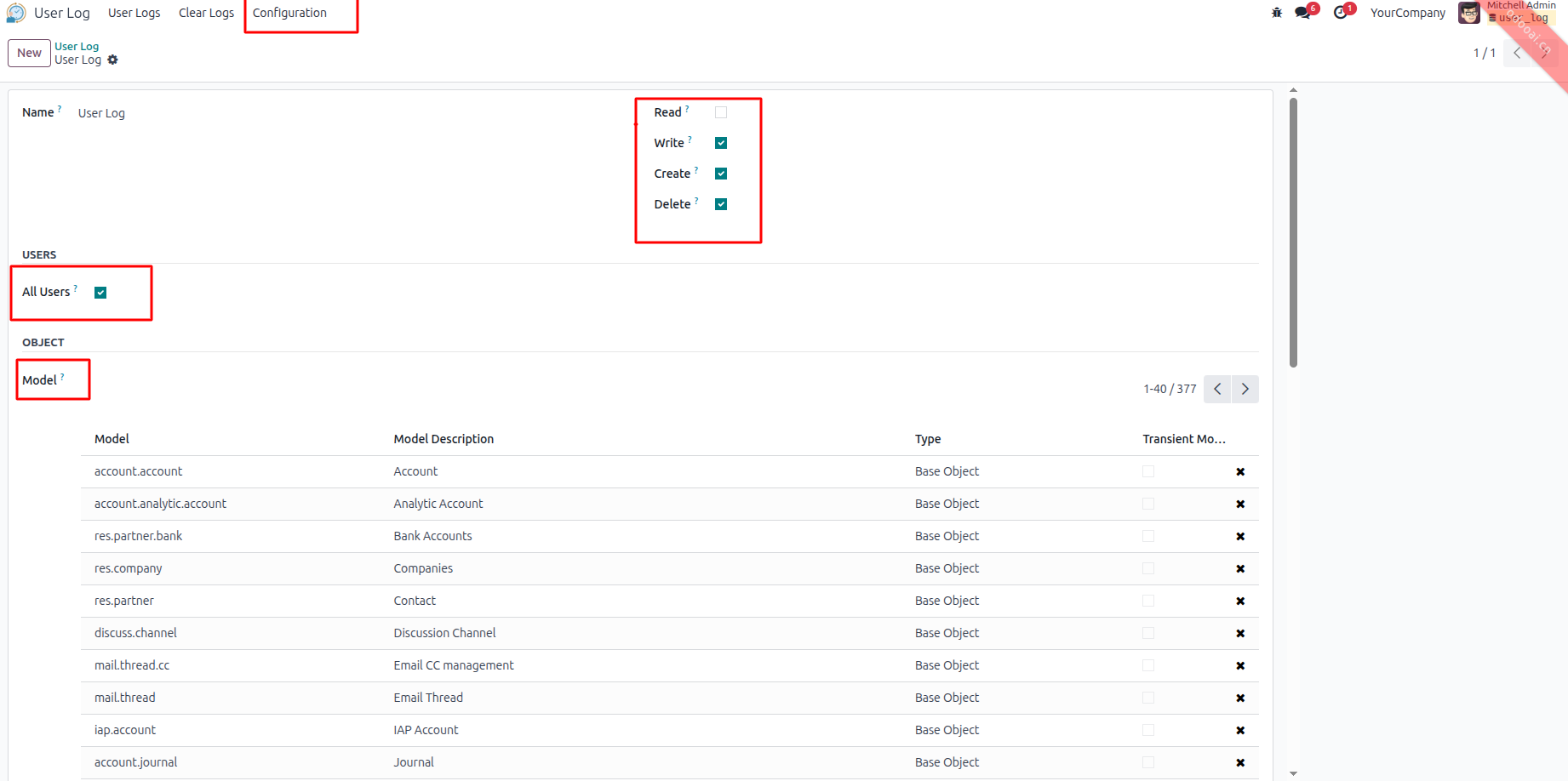
Step 2 — Go to User Log → Configuration → New. Select the models you want to monitor, choose which operations to track, and select whether to apply it to all users or specific ones. Save.
Step 3 — That's it. Every matching action is now captured automatically.
Step 4 — Go to User Log → Logs to browse all activity. Click any row to see the full detail including the field-by-field change table.
Step 5 — When logs accumulate, go to User Log → Clear Logs and bulk-remove old entries to keep your database clean.
Setup Tracking
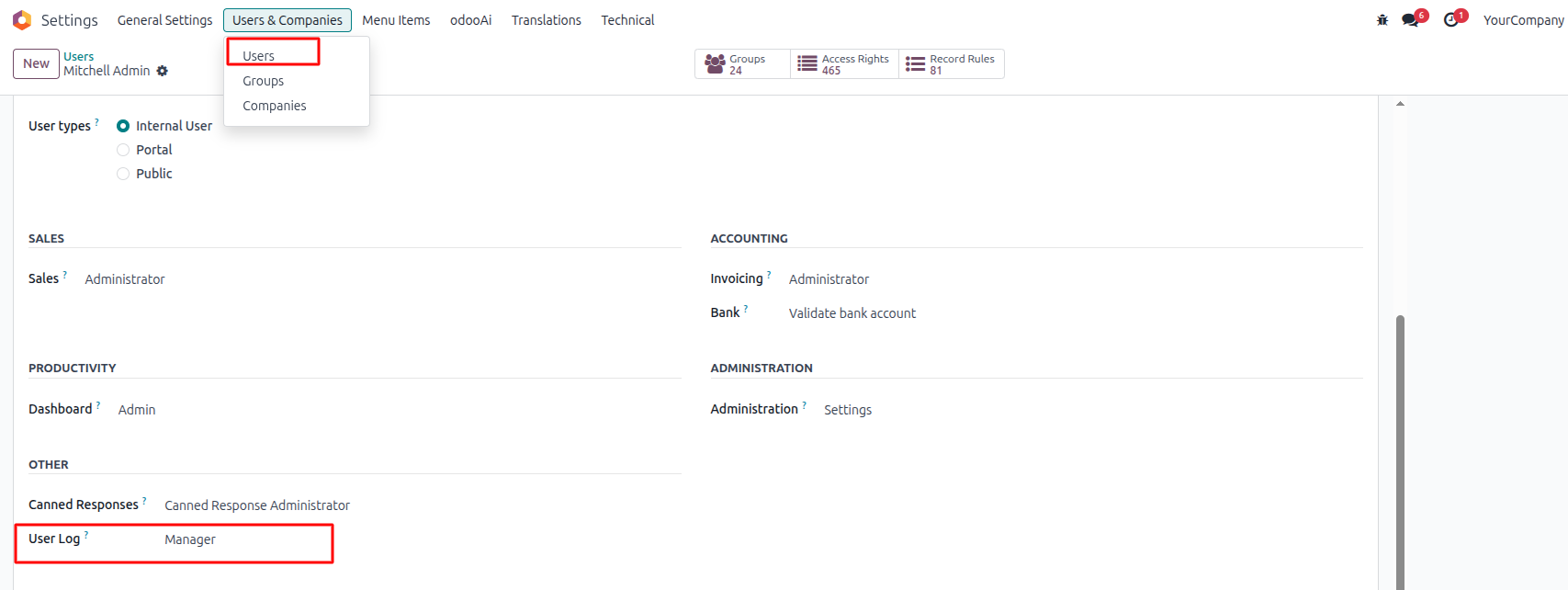
The User Log module adds a dedicated permission field directly on the Odoo user form (Settings → Users & Companies → Users). Administrators can assign each user a User Log access level — Manager or User — controlling what they can view and manage within the audit log system.
Create Audit Configuration
From User Log → Configuration, administrators have full control over what gets tracked. Each configuration record lets you:
- Select Operations — independently enable or disable Read, Write, Create, and Delete tracking
- Target Users — enable All Users to track everyone, or select specific users only
- Choose Models — pick any Odoo model including Accounts, Contacts, Journals, and more
Tracked Create Activity
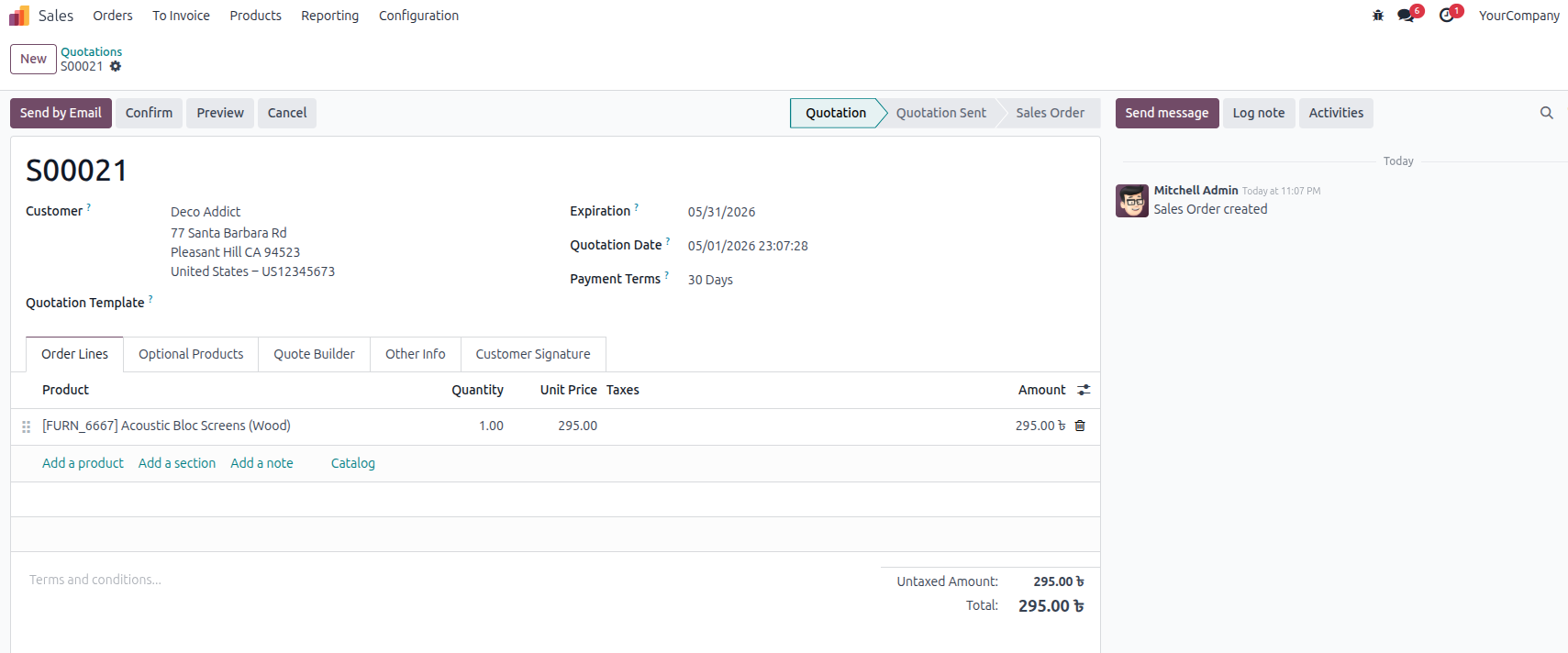
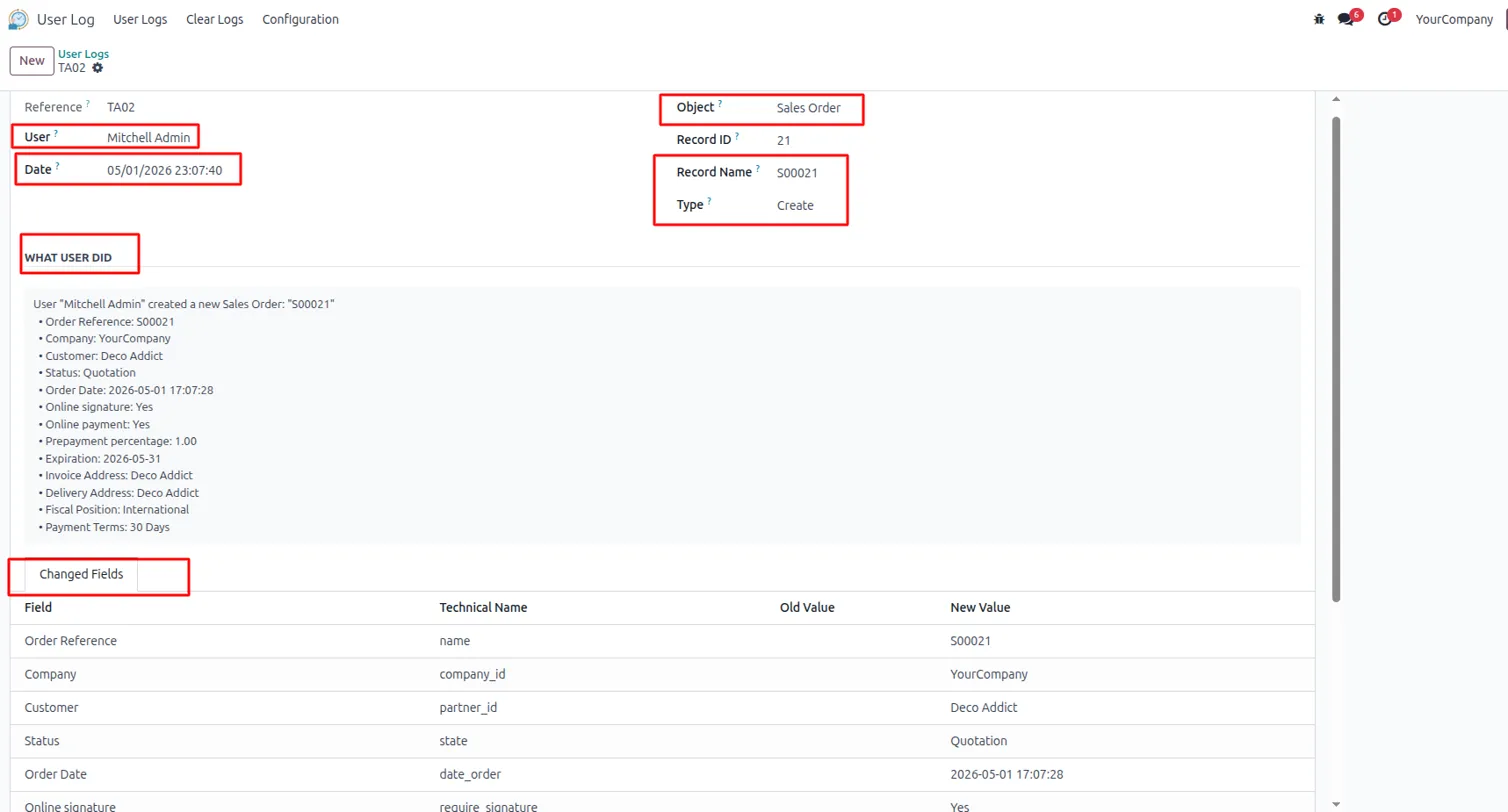
When a new record is created — such as a Sales Quotation — the module instantly captures the event. Every creation is logged with the user name, timestamp, and a full snapshot of the initial field values.
Create Log — Instantly Captured
The User Logs list immediately reflects the creation event. Both the Sales Order and its Sales Order Line are logged separately, each showing the exact Record Name, responsible User, operation Type (Create), and precise Date & Time.

Detailed Create Log — Full Field Snapshot
Opening a log entry reveals the complete picture. The form shows the User, exact Date & Time, Object (Sales Order), Record Name, and operation Type. The "What User Did" section provides a plain-English summary, while the Changed Fields tab lists every field with its Technical Name and New Value.
Update Record
By setting up tracking for the Write operation, edit a record from the Model selected in the User Log configuration.
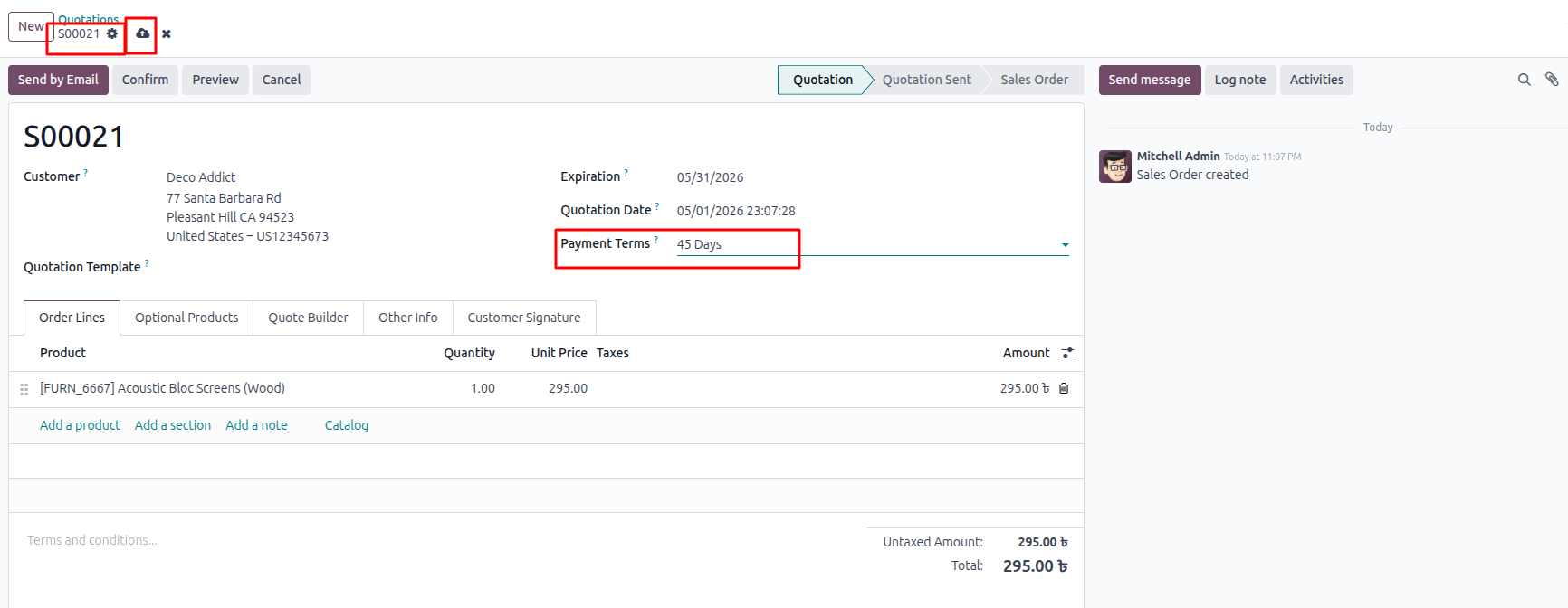
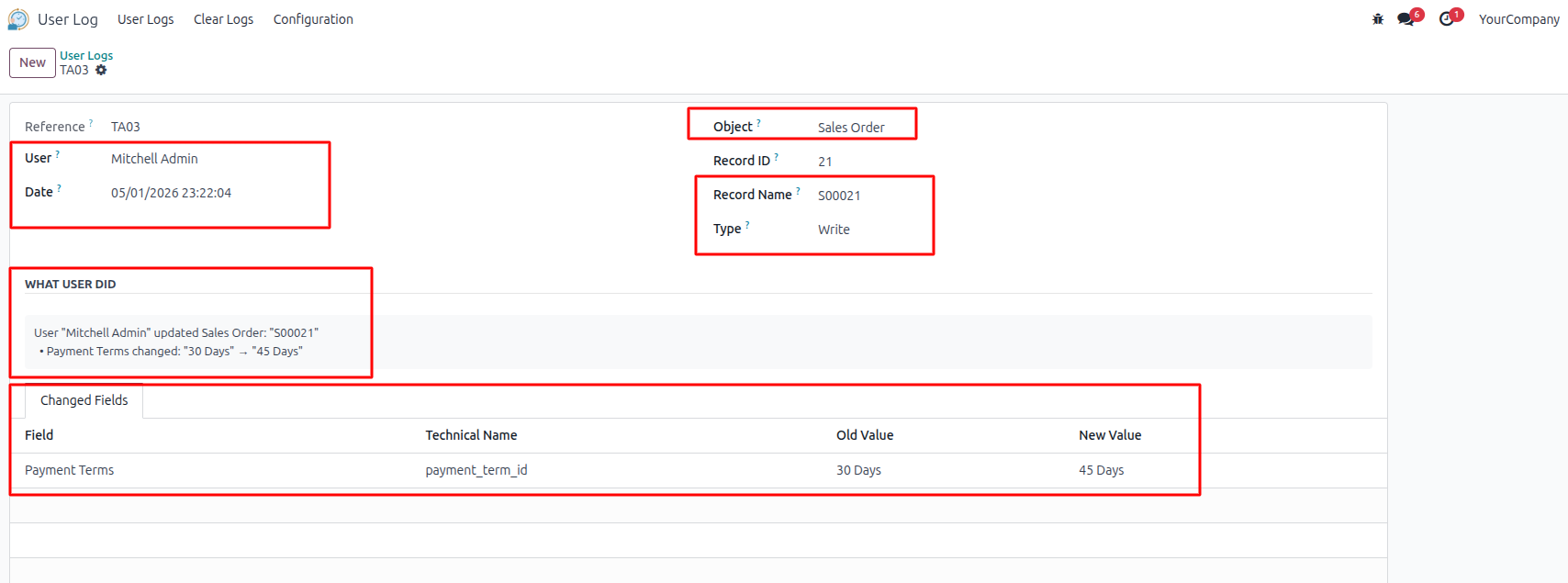
Write Log — Track Every Change with Old & New Values
When a record is updated, the module captures exactly what changed. The "What User Did" section displays a clear human-readable summary — for example, Payment Terms changed: "30 Days" → "45 Days". The Changed Fields tab shows the Old Value and the New Value side by side.
Delete Record
By setting up tracking for the Delete operation, delete a record from the Model selected in the User Log configuration.
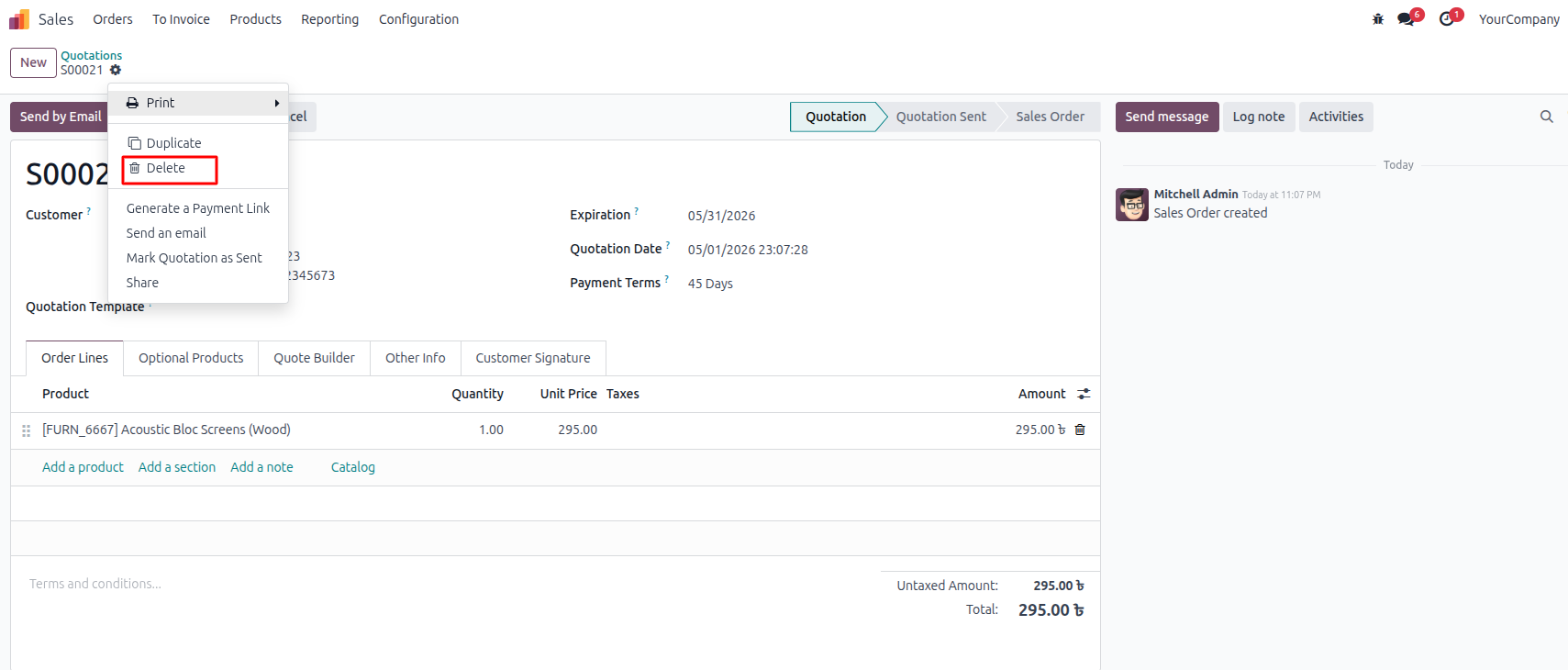
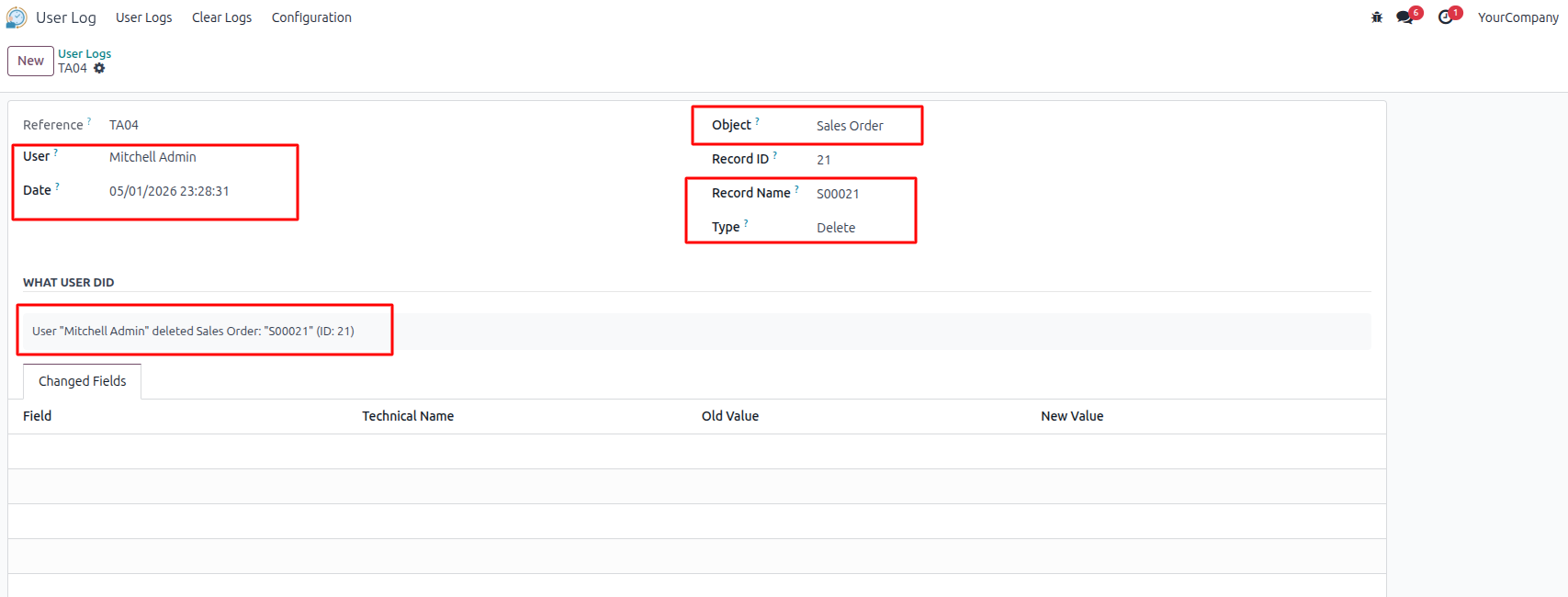
Delete Log — Know Who Deleted What and When
Deletions are never silent. When a record is removed, the module logs the User, exact Date & Time, Object, Record Name, and Record ID — preserving the reference even after the record is gone.
Clear Logs — Smart Log Management
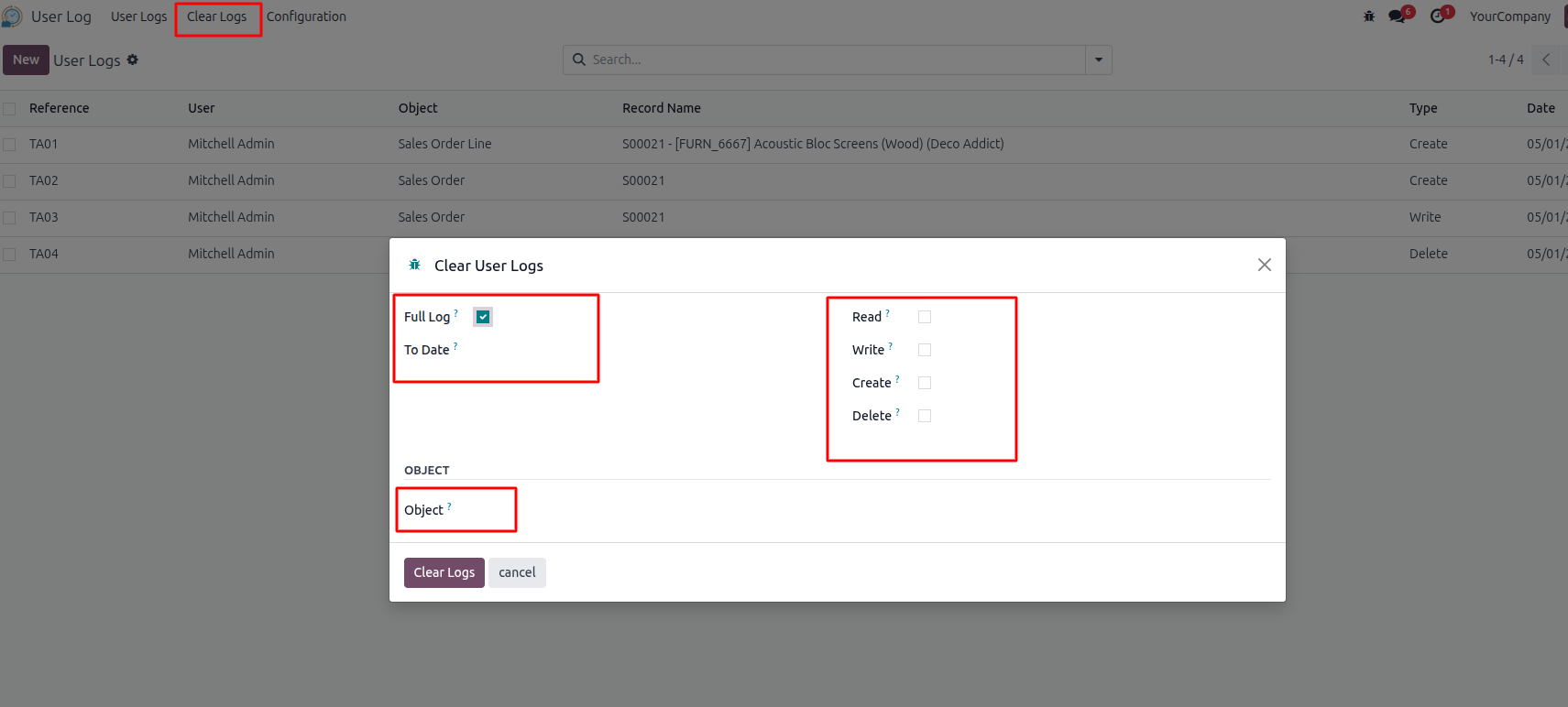
Keep your audit database clean with the built-in Clear Logs wizard. Accessible only to administrators, it offers flexible filtering options:
- Full Log — wipe all log entries at once
- To Date — remove only entries older than a specified date
- Operation Type — selectively clear by Read, Write, Create, or Delete
- Object — limit clearing to logs of a specific model only
Access Control
Two roles are available under Settings → Users:
- Manager — sees all logs across all users and can clear log history
- User — sees only their own activity logs
The admin user is automatically assigned Manager on installation.
Who Should Use It?
User Log is useful for any Odoo 17, 18 and 19 business that needs accountability. If you have multiple users touching records every day, you need a way to know what happened, when, and who did it. User Log gives you that — cleanly and automatically.